How to set up optimization for standard and custom events on Meta Ads Manager
A practical walkthrough of standard events, custom conversions, and custom events in Meta Ads Manager — how to instrument them, which one to optimize for at each funnel stage, and the mistakes that quietly wreck attribution.
If you're running Meta ads for a high-ticket offer, the single biggest lever you have isn't creative, it isn't audience — it's what event you tell the algorithm to optimize for. Meta's delivery system is only as good as the signal you feed it. Optimize for the wrong event, or feed it noisy data, and you'll get a feed full of cheap clicks and expensive junk leads. Optimize for the right event with clean data, and Meta's machine learning will actually go find you people who look like your best customers.
This guide walks through setting up both standard events and custom conversions in Meta Ads Manager, choosing the right optimization event for each stage of your funnel, and avoiding the mistakes that quietly wreck attribution.
Standard events vs. custom conversions vs. custom events
Meta gives you three tools that get confused with each other constantly:
- Standard events — Meta's predefined set (
Purchase,Lead,CompleteRegistration,Schedule,Contact,InitiateCheckout, etc.). These come with built-in optimization support and better machine learning coverage because Meta has training data from every advertiser using them, not just you. - Custom conversions — rules built on top of events you're already sending (e.g., "fire when URL contains
/thank-you" or "fire when a standard event hasvalue > 500"). No code changes required — these are configured entirely in Events Manager. - Custom events — events you define and send yourself via the Pixel or Conversions API with a name Meta doesn't recognize (e.g.,
BookedDiscoveryCall,ProposalSent). These carry less built-in ML weight than standard events but are essential when your funnel has steps Meta's standard taxonomy doesn't cover.
The practical rule: use a standard event whenever one reasonably fits, even if you have to bend the naming a little. Reserve custom events for funnel steps that are genuinely specific to your business (like a sales-qualified-call event) and where you need pipeline-stage-level granularity that a generic standard event can't express.
Step 1: Set up the Meta Pixel and Conversions API together
Before you touch Ads Manager, get your data foundation right.
- In Events Manager, create a Pixel (or use your existing one) and install it site-wide.
- Set up the Conversions API (CAPI) alongside the Pixel — not instead of it. Server-side events via CAPI are far more resilient to iOS tracking restrictions, ad blockers, and browser privacy settings than browser Pixel events alone.
- Turn on Event Match Quality by sending as many matching parameters as you can with every event: email (hashed), phone (hashed), external ID, client IP, user agent, and fbc/fbp cookies. The more of these Meta can match to a real profile, the more accurately it can optimize.
- Deduplicate Pixel and CAPI events by sending the same
event_idfrom both sources for the same conversion. Without this, you'll double-count every conversion.
You can verify all of this is working in Events Manager → Test Events before you spend a single dollar on ads.
Step 2: Map your funnel to events
Before creating anything in Ads Manager, write out your funnel and decide which step gets which event type. A typical high-ticket sales funnel looks like:
| Funnel Step | Event Type | Event Name | |---|---|---| | Landing page view | Standard | ViewContent | | Application/quiz started | Standard/Custom | InitiateCheckout or ApplicationStarted | | Call booked | Standard | Schedule | | Call shows up / taken | Custom | CallTaken | | Proposal sent | Custom | ProposalSent | | Deal closed / payment | Standard | Purchase (with value and currency) |
Notice the pattern: the events closest to the top and bottom of the funnel usually map cleanly to standard events. The middle of the funnel — the parts that are specific to how your sales process works — is where custom events earn their keep.
Step 3: Create custom conversions for events you're already sending
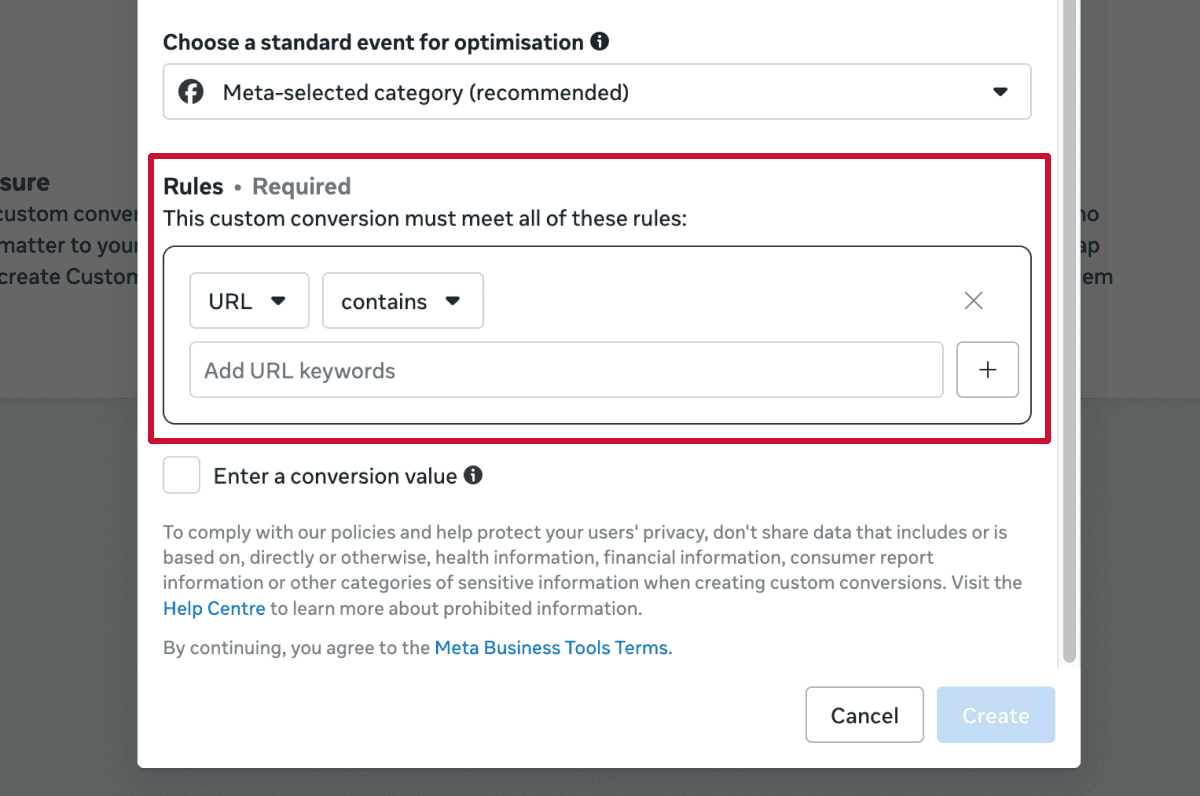
If you're sending a standard event but only want to optimize for a subset of it (say, Purchase events over a certain deal size, or Lead events from a specific form), build a custom conversion instead of a new custom event:
- Go to Events Manager → Custom Conversions → Create Custom Conversion
- Choose the source event (e.g.,
Purchase) - Add rules — URL contains, event parameter equals/greater than, etc. A common one:
Purchasewherevalue >= 2000to isolate high-ticket closes from smaller upsells. - Name it clearly and assign a category (Meta uses the category to decide which optimization tier it belongs to)
- Save — it becomes selectable as an optimization event in any campaign within about 15–20 minutes
Custom conversions inherit the volume and quality of their source event, so they work best layered on top of standard events rather than custom ones.
Step 4: Send custom events for funnel steps Meta doesn't have a name for
For anything that doesn't fit a standard event — like a call being marked "qualified" in your CRM, or a proposal being sent — send a custom event via the Conversions API with a name you define:
- In your CRM or attribution layer, fire a server-side CAPI call when the step happens (e.g., when a rep marks a call as taken)
- Use
event_nameset to something specific and consistent, likeCallTakenorProposalSent— never rename it later, since Meta's optimization history resets whenever the event name changes - Include the standard matching parameters (email, phone, external ID) so Meta can tie it back to the same user who clicked the ad
- In Events Manager, the custom event will show up automatically once it's received a few hits — you can then select it as an optimization event
This is exactly the kind of event a platform like Callix is built to emit automatically: when a call gets marked as taken, or a deal moves to "proposal sent," Callix can fire the corresponding CAPI event with clean matching parameters, so you don't have to hand-wire webhook logic into your CRM.
Step 5: Choose the right optimization event per campaign objective
In Ads Manager, when creating or editing an ad set:
- Choose objective Sales or Leads (these support conversion-location optimization; older objectives like Traffic don't optimize for downstream events at all)
- Under Conversion location, choose Website (or App/Both if relevant)
- Under Performance goal, select Maximize number of conversions and choose your event — this is where standard events, custom conversions, and custom events all show up in the same dropdown
- Set a cost per result goal if you want to constrain CPA, or leave it open for max volume
The general guidance on which event to pick:
- New campaigns / cold audiences — optimize for a mid-funnel event with decent volume (
LeadorSchedule) rather thanPurchasedirectly. If yourPurchasevolume is under roughly 50 events/week per ad set, Meta's algorithm won't have enough signal to exit the learning phase efficiently. - Once you have volume — move optimization down-funnel toward
Purchaseor a custom conversion on deal value. This is the single highest-leverage change most accounts never make: they optimize for leads forever because that's what worked on day one, and never graduate to optimizing for revenue. - Retargeting campaigns — optimize for the event closest to the audience's actual position in the funnel (e.g., people who booked a call but didn't show should be optimized toward
CallTaken, notPurchase).
Step 6: Verify optimization is actually using your event
After launching, confirm Meta is optimizing correctly:
- In Ads Manager, open the ad set and check the Optimization Event column — it should show the exact event you selected, not a fallback
- In Events Manager, check Diagnostics for the event — Meta will flag issues like missing parameters, low match quality, or insufficient volume
- Watch Event Match Quality (EMQ) score — anything below 5–6/10 means Meta is struggling to match your events to real Facebook profiles, which quietly degrades optimization even if the event is technically firing
Common gotchas and how to handle them
Renaming or replacing an event resets its learning history. If you rename ProposalSent to Proposal_Sent, Meta treats it as a brand-new event with zero history. Pick names once and keep them stable across your Pixel, CAPI, and every campaign that references them.
Low-volume custom events stall the learning phase. If an ad set doesn't hit roughly 50 optimization events within about a week, Meta keeps it in "learning" indefinitely, and CPMs stay volatile. Either combine ad sets to concentrate volume, or optimize for a higher-volume event upstream until you have enough signal to move down-funnel.
Browser-only Pixel events undercount badly on iOS. Since App Tracking Transparency, browser-side Pixel events alone can miss a large share of real conversions. If you're only running the Pixel without CAPI, you're optimizing on incomplete data — set up CAPI even if it feels like extra engineering work up front.
Custom conversions built on noisy source events inherit the noise. A custom conversion filtered from a Lead event that fires on every form interaction (not just qualified submissions) will optimize toward the wrong signal. Audit what's actually triggering your source event before building rules on top of it.
Multiple events firing for the same action causes duplicate optimization signal. If both your website Pixel and a third-party integration send Purchase for the same transaction without a shared event_id, Meta counts it twice — inflating your apparent conversion volume and confusing the algorithm about true conversion rate.
Attribution window mismatches make results look worse or better than reality. Check your ad set's attribution setting (1-day click, 7-day click, view-through) against how your sales cycle actually works. A 7-day sales cycle reported under a 1-day click window will chronically undercount conversions in Ads Manager, even though the CAPI events are firing correctly.
Why this matters more for high-ticket funnels
Low-ticket, high-volume funnels can get away with optimizing for Purchase from day one because volume solves the learning-phase problem naturally. High-ticket funnels rarely have that luxury — a $10k offer might only close 5–10 deals a week across an entire account. That's exactly why the mid-funnel custom events (CallTaken, ProposalSent) matter so much: they give Meta enough volume to learn on while you build toward enough Purchase volume to optimize on directly.
The teams that get the best CPAs are the ones who treat their event funnel as a real hierarchy — standard events where they fit, custom conversions layered for precision, and custom events for the sales-specific steps in between — rather than picking one event on day one and never revisiting it as volume changes.
Next steps
Once your events are properly instrumented and mapped to the right optimization goals:
- Re-check your Event Match Quality scores monthly — they drift as your site, CRM, or attribution stack changes
- Revisit which event each campaign optimizes for every time your close volume shifts meaningfully
- If your CRM or attribution platform (like Callix) can emit call- and pipeline-stage events directly to Meta's Conversions API, use that instead of hand-building webhook logic — it keeps event names, matching parameters, and timing consistent, which is most of what actually drives good optimization.